✨ Features
💬 Commonly Requested
❔ How-To's
Become a Beta Tester
Tips and Tricks
How To Request a Feature / Report a Bug
How to Back Up Your Purchase
Custom Clock
Uninstall Niagara Launcher
Looking up Your Order Number
Wallpaper Blur
Mastering The Search & Notification Gesture
Remove Hidden Apps From Search
Reset Default Clock, Calendar or Wallpaper App
Tips & Resources for Icon Pack Developers
Move clock
Change Font Size
Editing Your Favorites
Alphabet Localization
Knowledge Bot Help
Restart Niagara Launcher
Checking Niagara Launcher App Version
I cannot find a newly installed app
Invite Friends • Earn Rewards
Edit Mode
Resetting Niagara Launcher
Using Icon Packs from the Samsung Galaxy Store with Niagara Launcher
Mark App as Music App
🌟 Niagara Pro
🔧 Troubleshooting
🧑‍💻 About Us
💬
Feedback
    Home
  1. ❔ How-To's
  2. Editing Your Favorites

Editing Your Favorites

Last updated About 1 year ago

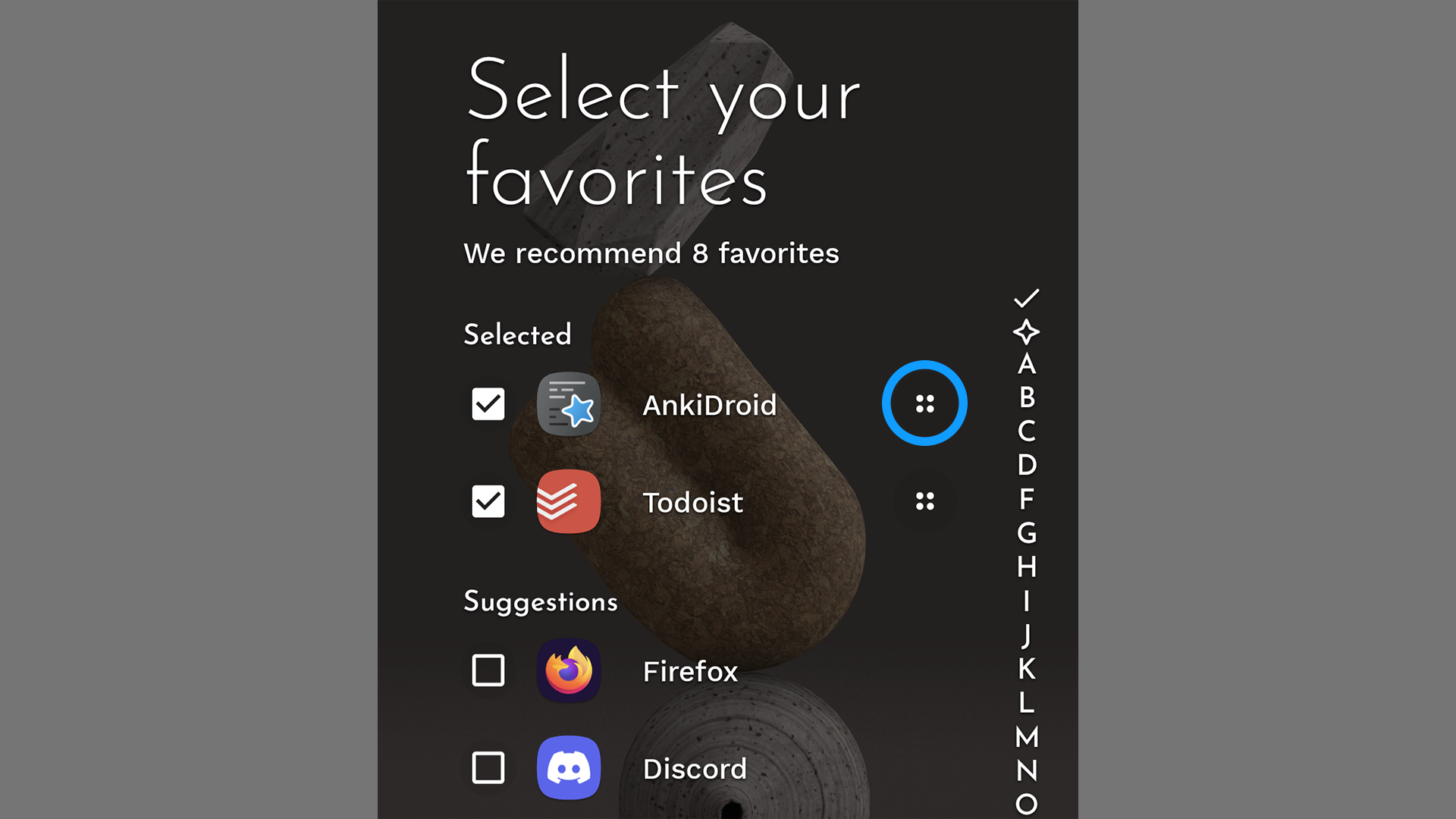
To add, rearrange or remove your favorites, long press on any of your favorites and tap on "Edit favorites." Here, drag the four dots to move one favored app above or below another. If you don't have any favorites, you can also long-press on an app in your app list and tap on "Favorite" to open this menu.

Was this helpful?